Formatting SD (KDE Partition Manager)
Required Reading
INFO
If you are using a SteamOS device (e.g. Steam Deck or Steam Machine), you should enter Desktop Mode to follow the instructions on this page.
WARNING
This page is for Linux users that have access to KDE Partition Manager only. If you are not on Linux, check out the Formatting SD (Windows) or Formatting SD (Mac) pages. If you are on Linux but don't have access to KDE Partition Manager, follow the instructions on the Formatting SD (Linux) page.
Instructions
Insert your SD card into your computer
If the SD card has any files and folders on it, copy everything to a folder on your computer
Eject your SD card from your computer
Open KDE Partition Manager, inputting your password as needed
Insert your SD card and click
Refresh Devices- The new device that shows up in the left pane is your SD card
Click your SD card, then click the
New Partition Tablebutton at the top of the windowDANGER
Make sure you choose the correct device, otherwise you might accidentally erase the wrong drive!
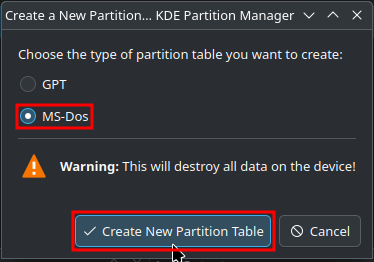
When asked, choose
MS-Dos. Do NOT use GPT.INFO
Right click the
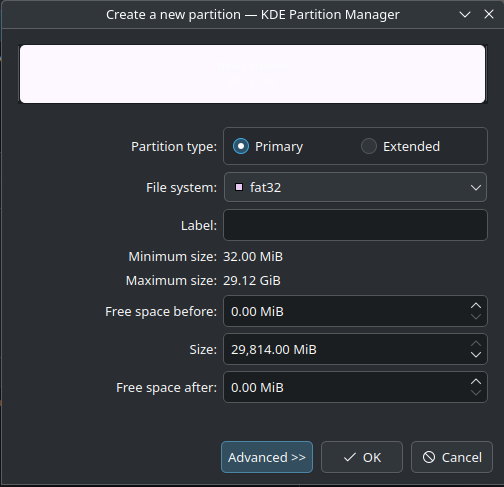
unallocatedspace in the right pane and selectNewWhen selecting your filesystem, choose
FAT32from the drop-down menu. The window should look like this:INFO
Click
OK, then clickApply, thenApply Pending OperationsEject and reinsert your SD card
If the SD card had any files and folders on it before the format, copy everything back from your computer