SD 포맷하기 (Windows)
중요
이곳은 3DS와 쓰기 위한 SD 카드를 포맷하는 부가 섹션입니다.
만약 3DS가 이미 SD 카드를 인식한다면, 이 가이드는 따를 필요가 없습니다.
WARNING
This page is for Windows users only. If you are not on Windows, check out the Formatting SD (Linux) or Formatting SD (Mac) pages.
준비물
- The latest version of guiformat
진행 방법
Run
guiformat.exeSelect your SD card's drive letter for "Drive"
DANGER
Make sure you choose the correct drive letter, otherwise you might accidentally erase the wrong drive!
Select a size for "Allocation unit size"
- If the SD card is 64GB, choose 32768
- If the SD card is larger than 64GB, choose 65536
Enter anything for "Volume label"
Ensure that "Quick Format" is selected
Click "Start"
Click "OK"
Wait for the format to finish
Click "Close"
If the SD card had any files and folders on it before the format, copy everything back from your computer
문제 해결
guiformat shows the error "Failed to open device: GetLastError()=32"
- Close everything that may be using the SD card, such as any File Explorer windows.
- If this issue persists, try reformatting the card to NTFS in File Explorer, close that window when it's done, and re-attempt the guiformat process.
guiformat shows the error "GetLastError()=1117"
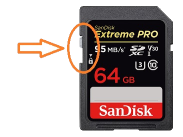
- Your SD card write-protection switch may be enabled. The lock must be flipped upwards to allow writing to the SD card (including formatting).
SD 카드를 콘솔에서 여전히 감지되지 않거나 포맷 이후로도 엉뚱한 용량을 표시할 경우
- SD 카드가 나뉘었거나 미할당 공간이 있을 가능성이 있습니다. Follow the instructions here to reformat your SD card.